
Print Finishes in PackCAD Mockup: Spot UV, Foil, Emboss, Spot Colors, and Coatings
PackCAD Mockup is a browser-based tool that folds flat dielines into realistic 3D packaging mockups, with high-quality visualizations of most print finishes and effects. This guide shows how to composite your print artwork with spot UV, spot colors, foil stamping, embossing and debossing, and full-coverage coatings, so you can see a realistic preview of your design before ordering a sample.
See how this hot foil look is set up: download the sample project and open it in PackCAD Mockup with File > Open Project: chocolate_bar.json
Artwork Layers
Select Artwork from the left menu to open the Artwork detail menu, where your print artwork and each finish and effect is its own layer. The menu holds two compositing stacks, Exterior layers and Interior layers, one for each side of your packaging. A compositing stack is an ordered list of layers that PackCAD Mockup combines from the bottom up into the finished surface.
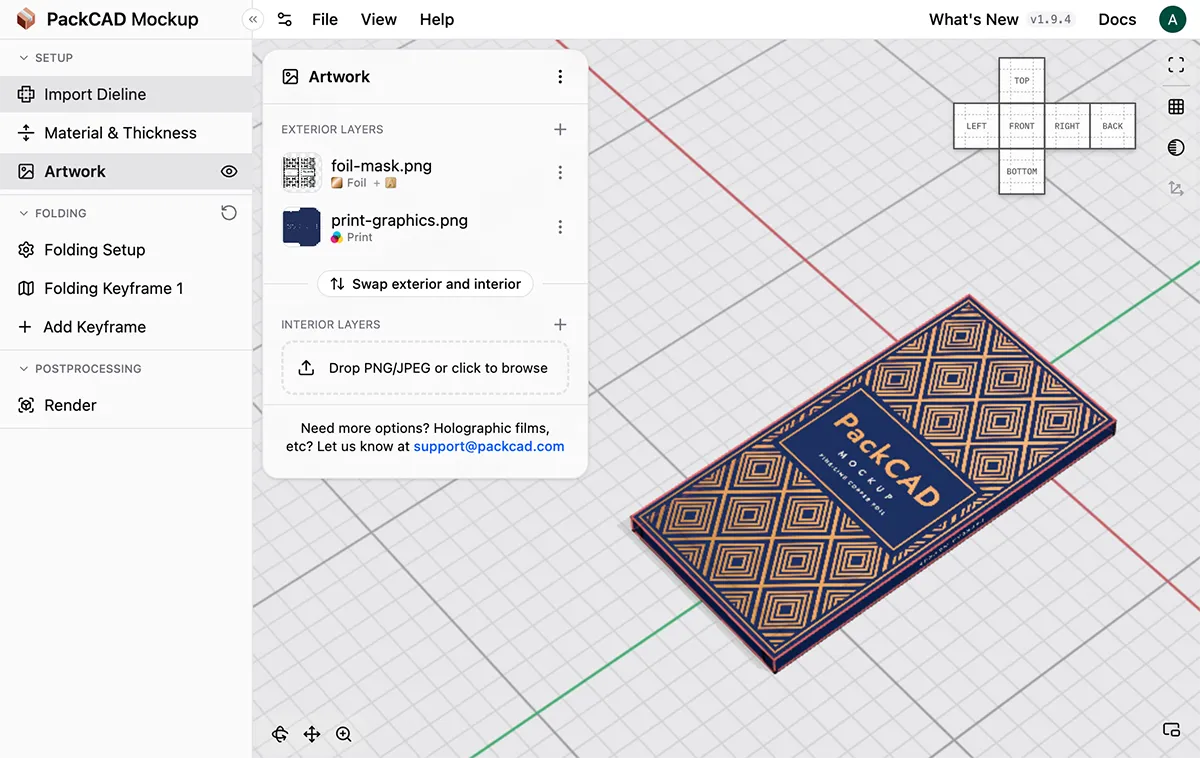
If you haven’t worked with the Artwork detail menu in PackCAD Mockup before, start with Getting Started, which covers how to export your designs so that they line up with your dieline.
Layer Types
There are six layer types, grouped into print layers, effects, and coatings:
- Print - Full-color artwork from a PNG or JPG. This is the layer type you get when you upload an image.
- Spot color - A single ink color, shaped by a mask.
- Foil - Metallic foil in any color, from gloss to matte, shaped by a mask.
- Emboss - Raises or presses in the board, shaped by a mask.
- Clear coat - A transparent coating from gloss to matte, for spot UV, varnish, aqueous coating, and laminate.
- Soft touch - A velvety matte coating.
Click a layer to open its Layer properties, where you can change its Type and settings.
The animation above shows many of these layer types side by side, including spot color, foils, emboss and deboss, spot UV, and soft touch: finish_sampler.json
Layer Order
To add a new layer, click beside Exterior layers or Interior layers and pick a layer type. The new layer is added to the top of that side’s compositing stack.
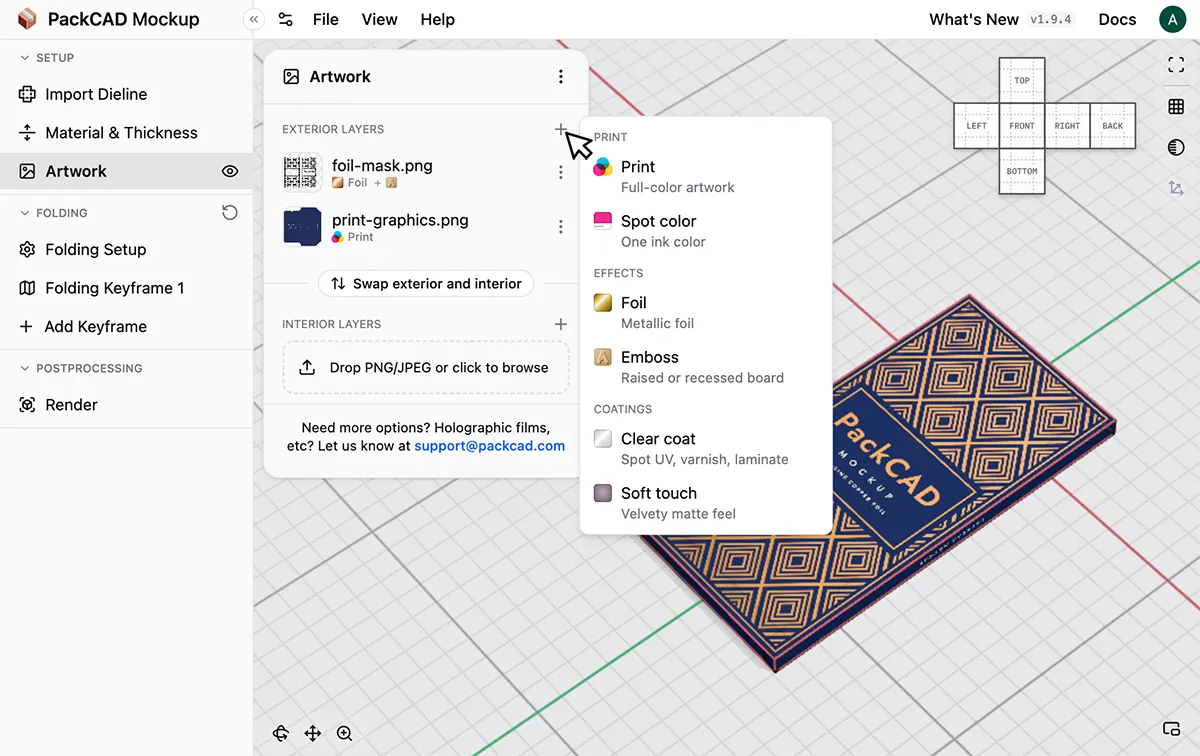
Drop an image directly into either side’s compositing stack to quickly add it as a new layer.
Each compositing stack is combined from the bottom up, so a layer sits on top of everything below it in the list. Order the stack the way the job would run on press, with printing at the bottom, and foil and coatings on top. Drag the grip on a layer to move it up or down the stack, or drag it into the opposite side’s stack. To swap the two stacks, click Swap exterior and interior.
The order changes the result. Foil above a print layer covers the ink beneath it, like foil stamped onto a printed sheet. With the print layer above the foil, the ink blocks out the foil by default, or tints it and lets the metallic effect shine through if you turn on Transparent ink. A gloss clear coat above a soft touch layer stays glossy, for spot UV on a matte box.
Preparing Masks
Spot color, foil, emboss, and coating layers take their shape from a mask. A mask is a PNG with a transparent background: the finish or effect goes wherever the PNG is opaque, and the color contents of the mask PNG are ignored. If a mask has no transparency, the finish covers the entire side and the layer shows a warning (see Layer Warnings).
Draw the mask shape in any color on a transparent background. The layer’s own color or finish replaces it.
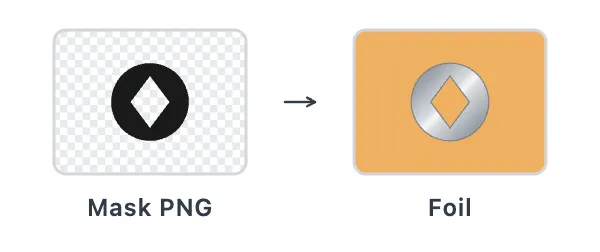
A spot color, foil, clear coat, or soft touch layer with no mask covers the entire side, which is how you apply a flat background color, a flood coating, or a fully foiled board. Emboss layers always need a mask.
Export each mask from the same artboard as your dieline and print artwork so that everything lines up. For Adobe Illustrator users: put each finish or effect on its own layer, hide everything else, and export a PNG with Use Artboards selected and a transparent background.
Finishes and Effects
Spot Color
A Spot color layer prints a single flat ink color in the shape of its mask. Use it to preview a brand color separately from your full-color artwork, or to try out color options without re-exporting your print file.
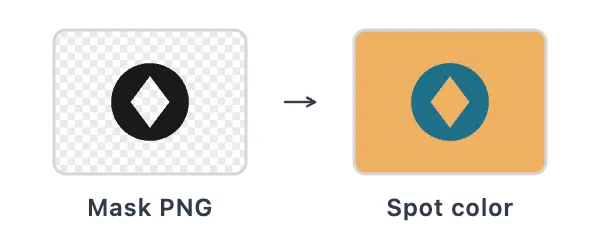
Set the ink with the Color picker or type a hex value. Semi-transparent areas of the mask blend with the layers beneath.
Foil
A Foil layer adds metallic foil in the shape of its mask, for hot foil stamping and cold foil effects. Add a foil layer with no mask to simulate metallized board.
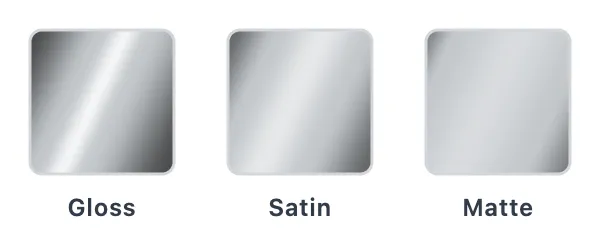
Set the foil’s Color by choosing one of the presets (gold, silver, gunmetal, copper, or rose gold), or pick any color for a tinted foil. Sheen controls how sharply the foil reflects light: gloss is mirror-like (also called bright foil), satin softens the highlights, and matte gives a diffuse, low-glare metallic. Drag the slider for a sheen in between.
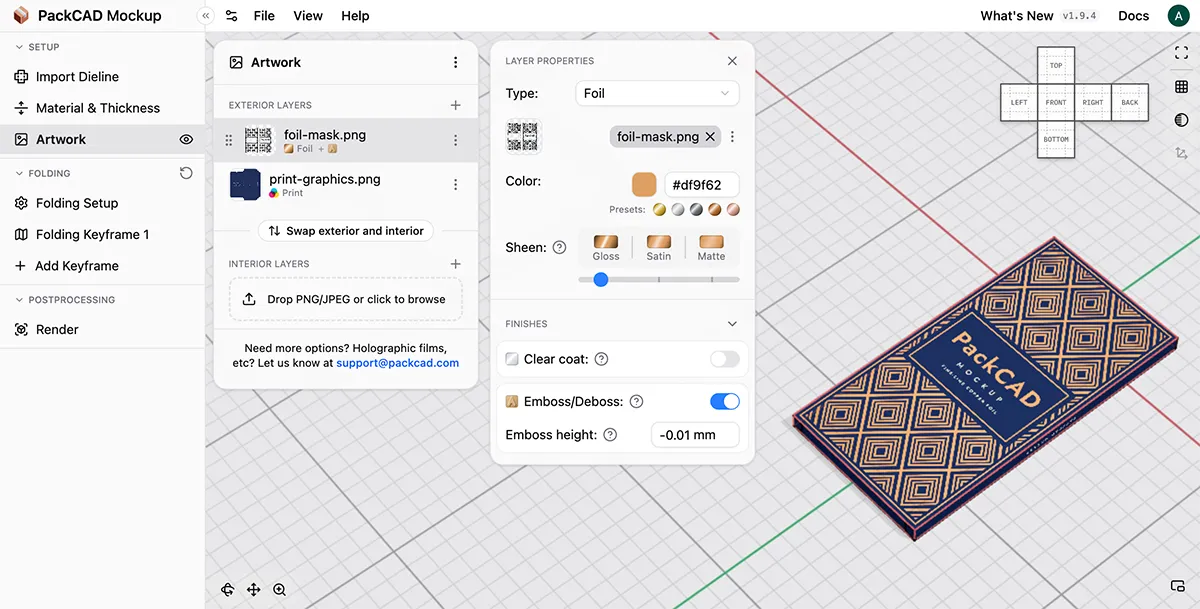
For the slight impression a stamping die leaves in soft or uncoated board, turn on Emboss/Deboss on the foil layer and set a small negative Emboss height (see Combining Finishes).
To overprint foil for colored metallic effects, place a print or spot color layer above the foil layer and turn on Transparent ink. The layer’s colors print onto the foil while keeping its metallic shine, the way transparent inks print over foil board or cold foil.
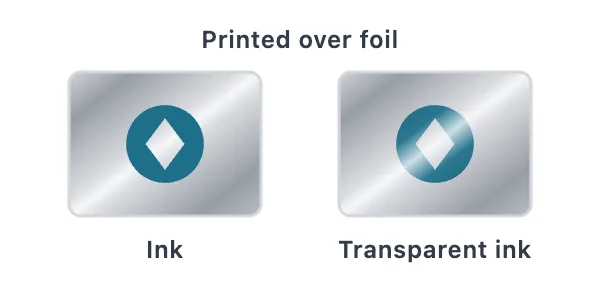
The Transparent ink switch only appears in a layer’s Layer properties when there is a foil layer beneath it, and it has no effect where the layer doesn’t overlap foil.
Emboss and Deboss
An Emboss layer raises or lowers the board wherever its mask is opaque. Set the Emboss height to control how far the board is raised or lowered. Use a negative height to deboss, which presses the board in instead; the height can go up to 0.25 in (6.5 mm) in either direction.
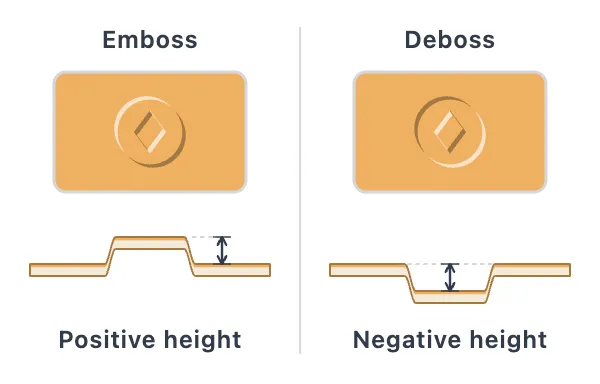
PackCAD Mockup automatically adds a slight bevel to the edges of your emboss or deboss. For a softer emboss, use transparency in the mask: areas that are partly transparent rise partway, so a soft-edged mask gives a softer relief.
Clear Coat
A Clear coat layer adds a transparent coating to your packaging mockup. Use it with a mask to simulate a spot UV or spot varnish effect, or with no mask to simulate a full-coverage coating, such as varnish, aqueous coating, UV coating, or laminate.
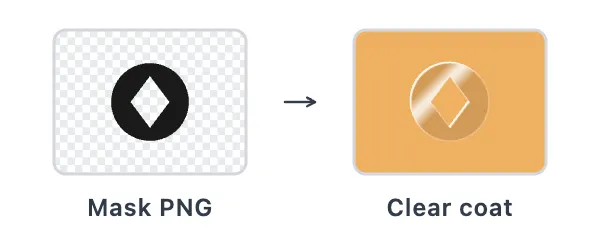
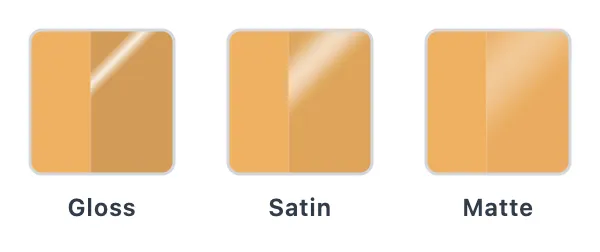
Sheen controls how sharply the coating reflects light: gloss is shiny, satin softens the highlights, and matte is diffuse with low glare. Drag the slider for a sheen in between.
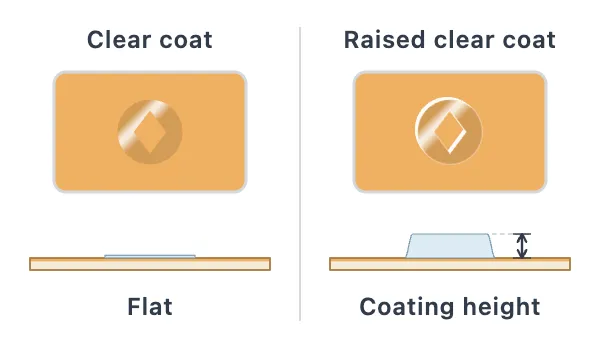
For raised spot UV, turn on Raised to build the coating up so it stands off the board, then set the Coating height, up to 0.02 in (0.6 mm). Raising a coating needs a mask with transparency, so it isn’t available on a full-coverage coat.
Spot UV shows up best over a matte surface. Add a full-coverage matte clear coat or a Soft touch layer beneath it for the classic gloss-on-matte look.
Soft Touch
A Soft touch layer gives the surface a velvety matte finish, like soft-touch lamination. It covers the entire side unless you give it a mask, and has no other settings.
Combining Finishes
For convenience, the print, spot color, and foil layers can carry finishes of their own, applied through the layer’s own image or mask so they line up exactly. When the layer’s image or mask has transparency, a Finishes section appears in its Layer properties with two switches, Clear coat and Emboss/Deboss.
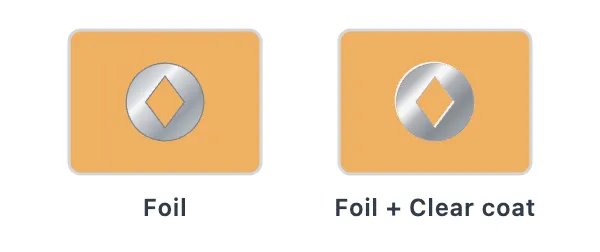
Turn on Clear coat to coat just this layer’s shape, for a spot UV effect over a logo or a foil. It has the same Sheen, Raised, and Coating height settings as a clear coat layer, and gives the same result as adding a separate clear coat layer with the same mask.
Turn on Emboss/Deboss to raise or press in the board in this layer’s shape, for foil embossing or a registered emboss over printed artwork. It has its own Emboss height, and gives the same result as adding a separate emboss layer with the same mask.
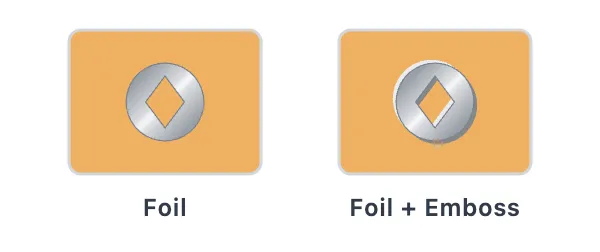
Each switch is a shortcut: it does in one click what would otherwise take a second layer and a second upload of the mask PNG.
A clear coat added as a finish is always applied above every print, spot color, and full-coverage coating layer on that side, wherever its own layer sits in the compositing stack. If you need more precise control over the layer order, add a separate Clear coat layer and drag it into place.
Common Finishes
Here is how common print finishes map to layers in PackCAD Mockup:
| Finish | How to build it |
|---|---|
| Hot foil stamping | Foil layer with a mask |
| Matte foil, satin foil | Foil layer with Sheen set to matte or satin |
| Metallized board (foil board) | Foil layer with no mask |
| Foil embossing | Foil layer with a mask, with Emboss/Deboss turned on under Finishes |
| Registered emboss | Print layer with a transparent background, with Emboss/Deboss turned on under Finishes |
| Blind emboss or deboss | Emboss layer with a mask, using a negative Emboss height to deboss |
| Spot UV | Clear coat layer with a mask, with Sheen set to gloss |
| Raised spot UV | Clear coat layer with a mask, with Raised turned on |
| Spot matte | Clear coat layer with a mask, with Sheen set to matte |
| Gloss or matte varnish, aqueous coating, laminate | Clear coat layer with no mask |
| Soft-touch lamination | Soft touch layer with no mask |
| Spot UV on soft touch (gloss on matte) | Soft touch layer with no mask, with a masked gloss clear coat layer above it |
| Foil on soft touch | Soft touch layer with no mask, with a foil layer above it |
| Spot color | Spot color layer with a mask |
| Overprinted foil (colored metallics) | Print or spot color layer above a foil layer, with Transparent ink turned on |
Layer Warnings
A icon on a layer means something about it won’t look the way you expect. Select the layer to see the details in its Layer properties:
| Warning | Solution |
|---|---|
| Mask has no transparency | The mask is fully opaque, so the finish covers the entire side. Upload a PNG with a transparent background. |
| Below a print or spot color layer | A coating is underneath ink, where it wouldn’t be in production. Click Move above printing to fix the order. |
| Covered by a full-coverage coating | A coating is hidden by a full-coverage coating above it. Reorder the layers, or remove the one you don’t need. |
If you replace a layer’s image or mask with one that has no transparency, any clear coat and emboss finishes on that layer are removed, since they no longer have a shape to follow.
Export and Rendering
Finishes appear in the 3D view as you add them, so you can rotate the model and watch the foil and other finishes catch the light. For a presentation image, open the Render tool, where path-traced lighting gives foil, coatings, and embossing accurate highlights and reflections. See the Photorealistic Rendering guide for a full walkthrough.
You can also export a 3D model with the finishes and effects baked in under File > Export 3D Model.